Layout, Controls & Design Settings
General
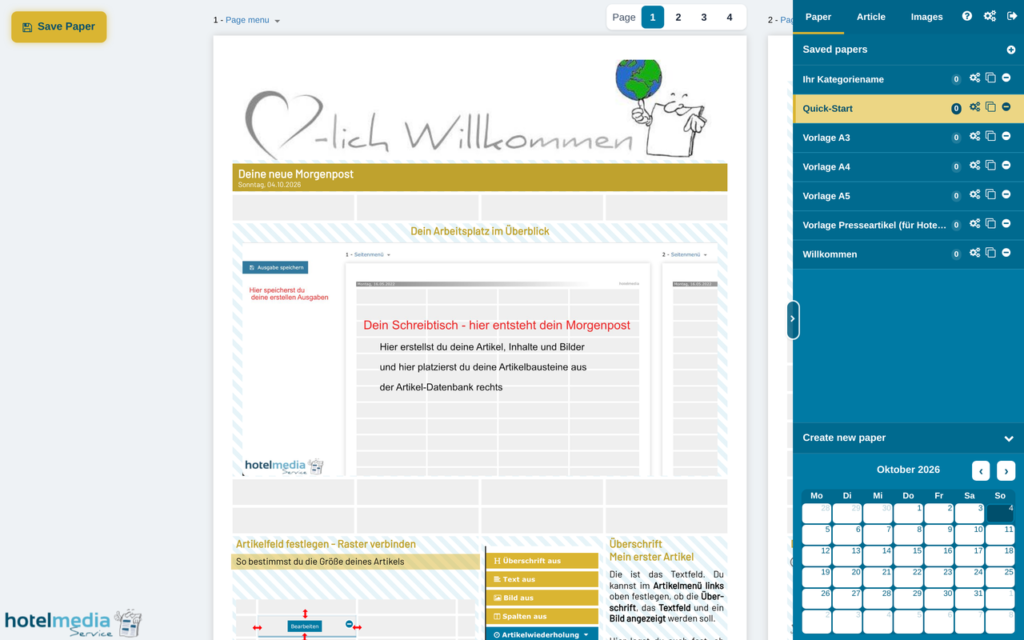
The workspace in Hotelmedia News is divided into two areas:
LEFT – The layout for your daily newspaper
This is where your daily editions are created. You create articles with content and images, and place the nameplate and your finished articles and images exactly as you like.
RIGHT – The sidebar for controlling the software and the content
Everything you create in Hotelmedia News is stored here.
Tip: Need more space for the layout? With the handle on the left edge of the sidebar you can hide it and show it again (shortcut Ctrl + \, on a Mac cmd + \).
Tip: Want more room for articles and images? You can make the sidebar wider or narrower. Grab its left edge with the mouse anywhere except the handle itself (the pointer turns into a double arrow there) and drag it to the left or right. The wider the sidebar, the more tiles fit side by side. With the keyboard, select the edge with the Tab key and change the width with the arrow keys. Double-click the edge to go back to the default width. The sidebar grows to at most half the window, and on smaller screens it never covers the first page. Your browser remembers the width you choose. On the iPad and other touch screens the sidebar keeps its default width, and the handle hides and shows it as before.
Tip for the iPad: In landscape and on other narrow screens, the bar to the left of the layout becomes a slim icon bar, and the pages move to the left. That way an A4 page fits even with the sidebar open. On touch screens, the sidebar icons, the logout icon, the handle that hides and shows the sidebar, and the delete icons on articles and images are larger, so you can hit them easily with a finger. In a tall window, the layout is centred vertically.
Controlling the Software & the Content
“Paper” section
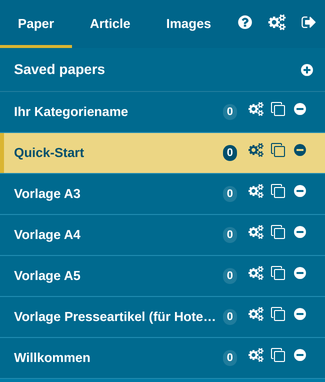
Under “Saved papers”, your publications are stored in individual edition categories, such as the daily hotel newspaper, the weekly programme etc. At the beginning you will find various templates here, and later our kids’ newspaper. The number next to each category shows how many editions are stored in it.
With the plus icon to the right of “Saved papers” you create a new edition category – in A4, A5 or A4 long format.
- Gear icon “Settings” – this is where all settings such as colours, fonts, page layout, number of pages etc. are configured for the edition category. This is also where you will find “Automatic Cleanup” for old editions and the settings for the E-Paper. Find out more in the quick guide E-Paper.
- Copy icon – here you can duplicate an entire edition category (e.g. for another seasonal version). Find out more in the quick guide Copying an Edition Category.
- Delete icon – this deletes the entire edition category, including all saved editions and article recurrences!
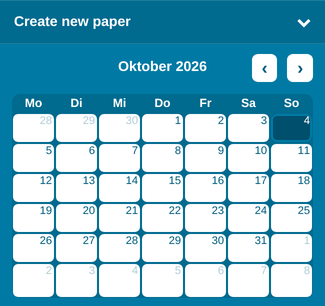
With the “Create new paper” calendar in the lower part of the “Paper” section, you create editions for any day you like. Clicking the heading “Create new paper” folds the calendar away and opens it again – leaving more space for your saved editions.
“Article” section
This is where all articles are stored that you have created yourself (Own articles) and that we provide for you (Shared content). You will also find Games, articles with Weather forecasts and the Masthead here – and, depending on your integrations and unlocked content, also your Giggle content (Giggle Weekly Program, Giggle Activities, Giggle Services) and the content of your tourism association, where available (Events, Infrastructure, Tours).
“Images” section
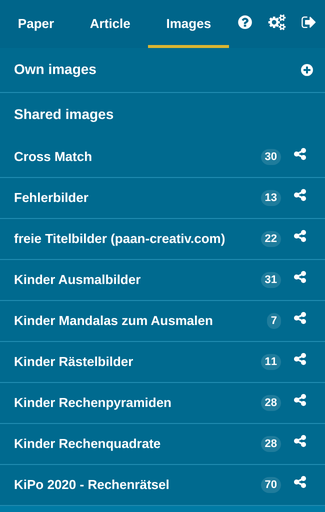
This is where all images are stored that you have uploaded yourself (Own images) and that we provide for you (Shared images).
“Help” section (question mark icon)
This takes you to our help pages with lots of useful resources such as video tutorials, quick guides on individual topics, downloads and the instructions for the E-Paper.
“Settings” section (gears icon)
Under “User interface language” you can choose between German and English. Under “Digital Widget”, the links to other digital media such as your website, guest apps from leading providers, hotel TV etc. are created and managed – this item appears when the website integration is activated for your account. Under “Storage” you can see how much of your available storage you are using, and in the “Automatic translations” section you get an overview of the characters you have left and can buy additional packages.
With the “Logout” icon at the end of the bar, you log out of Hotelmedia News.
The Layout of Your Newspaper
By default, the layout consists of
- four A4 pages with four columns and 24 rows,
- four A5 pages with three columns and 18 rows or
- four A4 long pages with two columns and 24 rows – four narrow portrait pages that are printed together on one A4 sheet and folded.
The layout can be changed to anything between 1 and 8 pages! You set the number of pages in the settings of the edition category (gear icon) with the “Number of pages” slider.
Page navigation: Above the top right corner of the page, the bar “Page 1 2 3 4” shows all pages of your edition. Clicking a number takes you straight to that page. When you are on the last page, you can add a page there with “+” or remove the last page with “−”. When space is tight, the bar collapses into a single button showing the current page – clicking it opens the list of all pages.
The individual fields of the layout (cells) can be merged with each other as you like and determine the size of your articles.
As soon as you make changes to your edition, the “Save Paper” button appears at the top left. After saving, the PDF options for your newspaper are available there.
for an A4 template
- A3 – four A4 pages are arranged for double-sided A3 printing, and the PDF can be folded to A4 portrait (for two or four pages)
- A4 – single A4 pages are output as a PDF.
for an A5 template
- A4 – four A5 pages are arranged for double-sided A4 printing, and the PDF can be folded to A5 portrait (for two or four pages)
- A5 – single A5 pages are created for individual use.
for an A4 long template
- A4 (print) – the four pages are arranged for double-sided printing on one A4 sheet, which is then folded (for four pages)
- DIN long – single pages in DIN long format are created.
The “Saved papers” and “Create new paper” Areas
In the right-hand window you will find the sidebar for controlling the software, with the Paper, Article and Images sections as well as the icons for Help (question mark) and Settings (gears). In the lower part of the “Paper” section you will find the “Create new paper” calendar.
Saved papers
Standard – this is where your editions are saved, ready for further editing.
Tip: Click the gear icon to open the settings, where you can, for example, change the name of the category.
Templates – at your first login you will also see various templates here, to give you an immediate impression of everything that is possible.
Kids’ newspaper – here we provide you with a ready-made kids’ newspaper every day.
Saved editions are shown as a thumbnail of the front page with the date of the edition. If several editions have been created for one day, a sequential number appears after the date.
Loading a saved edition
Click the thumbnail of the saved edition and choose “Load edition” – the saved edition is loaded and can be edited further.
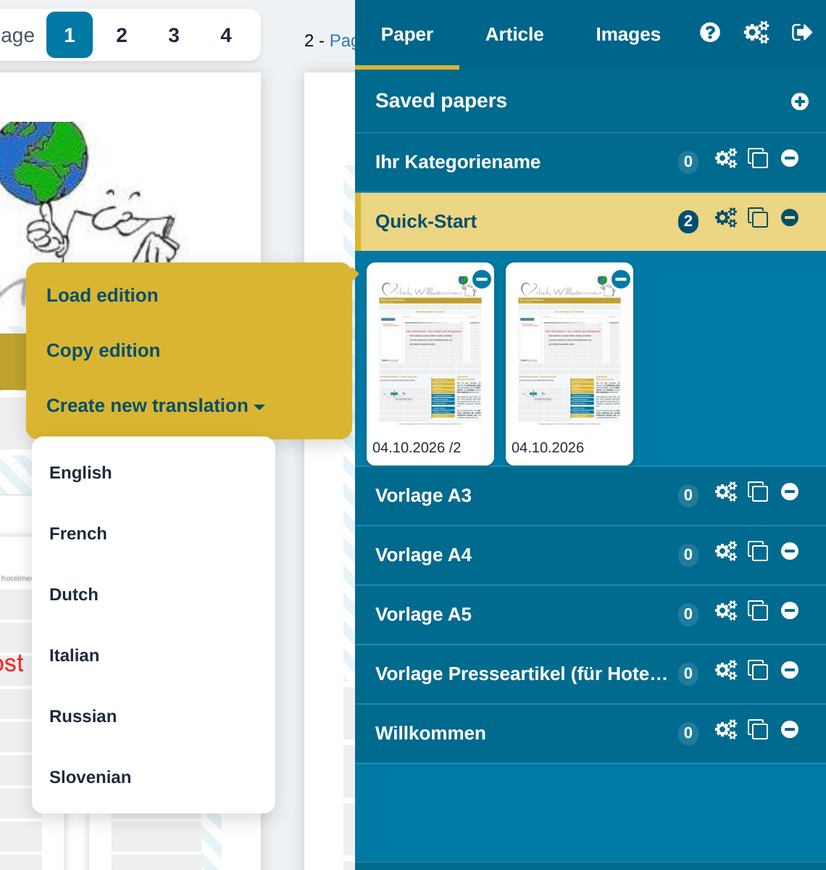
With “Copy edition” you can create a duplicate of your saved edition and change it individually (e.g. for a particular group of guests).
Tip: When you click the thumbnail, “Create new translation” also appears – this is where foreign-language editions of your hotel newspaper are created.
Find out more in the quick guide Translating an Edition
Deleting editions
You can delete a saved edition with the minus icon in the thumbnail.
Archiving editions and deleting them automatically
We recommend saving the finished PDFs of your editions locally on your computer if you want to refer back to these editions later!
You do not have to delete old editions by hand: in the settings of the edition category (gear icon), tick “Enable” under “Automatic Cleanup” and set under “Cleanup after number of day(s)” after how many days (1 to 500, counted from the edition date) an edition is deleted. The automatic cleanup runs every night and affects the saved editions of this category including their translations – your articles are kept.
Creating a new edition category
Click the “+” icon next to “Saved papers”, enter a category name and choose the format A4, A5 or A4 long. -> Find out more in the “Quick guide – Using multiple layouts – e.g. a weekly programme”
Creating a New Edition
In the “Create new paper” calendar, click the date you want to create an edition for that day. A NEW layout with that day’s date is loaded.
To load a saved edition, click its thumbnail in “Saved papers” and choose “Load edition”.
The “Article” Area
Own articles
All articles you create are automatically saved in this folder.
The folder is divided into subcategories, which you can create yourself by clicking the “+” icon next to “Own articles”. The number next to each category shows how many articles it contains.
With the full-text search at the very top of “Own articles” you can quickly find a particular article again.
Insert nameplate
This is where you create a new nameplate for the front page, and your nameplates are saved for further use.
Tip: A selection of ready-made nameplate images is also available to you.
Standard
This is where all articles are saved that you do not categorise otherwise.
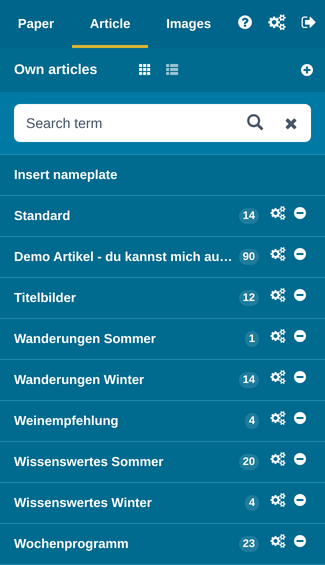
Articles are shown as tiles with a thumbnail, headline and size. The size gives the number of cells the article needs in the layout, e.g. “1 x 3”.
Clicking the tile opens a preview window where you can see the content of the article as well as its creation date and size.
To use an article in the layout, click the article and drag it to the position you want in the layout while holding down the mouse button. On the iPad, touch and hold the article for a moment until it comes free, then drag it with your finger to the position you want. If you swipe quickly over the list instead, the list simply scrolls.
As soon as you drag the article into the layout area, it is shown as a grey box in the article’s original size, which makes placing the article easier.
Now you can edit the article further in the layout by clicking “Edit”.
Deleting articles
The minus icon in the article tile deletes the article from the database. CAUTION: Deleting an article cannot be undone!
TIP: If an article is in use in a saved edition, it cannot be deleted, and a circle icon is shown instead of the minus icon!
Find out how to create articles in the quick guide “Creating your own articles”
Shared content
In this folder you will find all articles that we provide for you.
We regularly provide you with various ready-made content free of charge, such as weather lore, sayings of the day, birthdays, health tips etc. – most of it even in several languages!
Simply click one of the folders to see its content and use it by drag & drop.
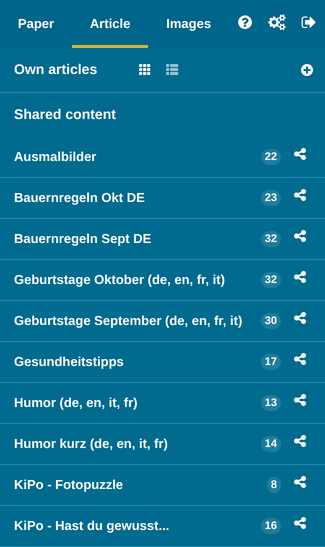
Giggle Weekly Program, Giggle Activities and Giggle Services
If your hotel uses Giggle and your account is connected to Giggle, you will find your Giggle experiences here as ready-made articles. Find out how this works in the quick guide Giggle Express Content in Hotelmedia.
Events, Infrastructure and Tours
These folders contain information from your local tourism association and are only shown if your tourism association is connected to our software! Depending on your tourism association’s integration, you will see one or more of these folders.
Events
All announcements of local events, sorted chronologically, each in three sizes: one, two or three columns wide, with or without an image.
The articles can be dragged into the layout like your own articles and edited further there with “Edit”. Edited articles are saved and shown in “Own articles”.
Infrastructure
Local information (e.g. about the infrastructure) is shown here. Editing works the same way as for “Events”.
Tours
Here you will find tours from your region, e.g. hiking trails, cycling or ski tours. Editing works the same way as for “Events”.
Games
In this section you will find sudokus in different levels of difficulty. Simply drag the sudoku you want into the layout.
TIP: If you want a sudoku in the same position every day, give the sudoku a daily article recurrence. A new sudoku is then inserted into the layout automatically every day.
Weather
Four different weather articles are available
Current Weather – forecast for your location
Current Weather (with freezing level) – forecast including the freezing level
5 Day Forecast starting Tomorrow – starts with the next day, based on the edition date
5 Day Forecast starting Today – starts with the same day, based on the edition date
Simply drag the weather article you want into the layout, ideally with a daily recurrence. The weather is then shown automatically in the right place in the layout every day.
We receive the latest weather data from our weather provider Q-Met every 4 hours, i.e. six times a day. The data is updated in the layout automatically.
Masthead
Drag the masthead article from “Article – Masthead” to a suitable position in the layout; it can also be given an article recurrence. If you use news articles, the masthead is mandatory in the edition.
The “Images” Area
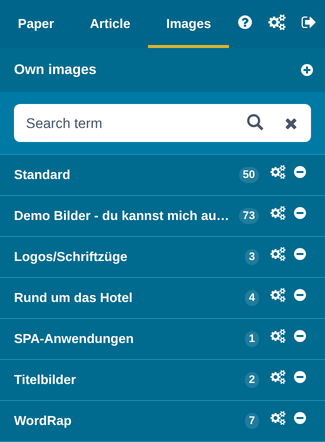
Own images
All images uploaded via an article or directly in the “Images” section are automatically saved in the “Standard” folder or in the currently selected folder.
You can create as many image categories of your own as you like by clicking the plus icon to the right of “Own images”. The number next to each category shows how many images it contains.
With the gear icon you can rename the “Standard” folder as well as your own folders and adapt them to your needs.
In the folders with the sharing icon, we provide you with images in various categories. New images are added continuously.
Simply click a folder to use its content. With the full-text search you can quickly find a particular image again.
Uploading images
With the upload field at the very bottom of the “Images” section (“Upload image(s) to: …”) you can also upload several images at once from your computer, to use them in your articles. Possible image formats: JPG, PNG, GIF, WEBP – up to 10 MB per image.
TIP: Images you upload are always saved in the folder that is currently active – it is shown next to “Upload image(s) to”.
Shared images
In this folder you will find all images that we provide for you.
We regularly provide you with various ready-made images free of charge, such as spot-the-difference pictures, mandalas, colouring pictures etc.
Simply click one of the folders to see its content and use it by drag & drop.
Using images
Images always need the “frame” of an article to be used in the layout.
First define the size you want in the layout by merging the grid cells, then drag the image into the field. On the iPad, do it the same way as with articles: touch and hold briefly, then drag. The resulting article is created automatically and saved in “Own articles”.
By clicking “Edit” on the article you can now add a headline and/or text and edit the image further, just as you know it from the article editor.