Translating an Edition
Multilingual editions are always based on the edition in the main language (in this case German).
The software itself creates a foreign-language version based on the German edition. Standard content such as the layout itself, the weather, sudoku etc. is already translated.
You either translate your own articles yourself or use our translation tool.
Articles translated once are saved with the main article and inserted automatically whenever the article is used in future.
Which languages are available?
We currently offer the following languages: German, English, Italian, French, Dutch, Spanish, Russian, Portuguese, Brazilian, Croatian, Hungarian, Czech, Romanian, Slovak, Bulgarian and Slovenian.
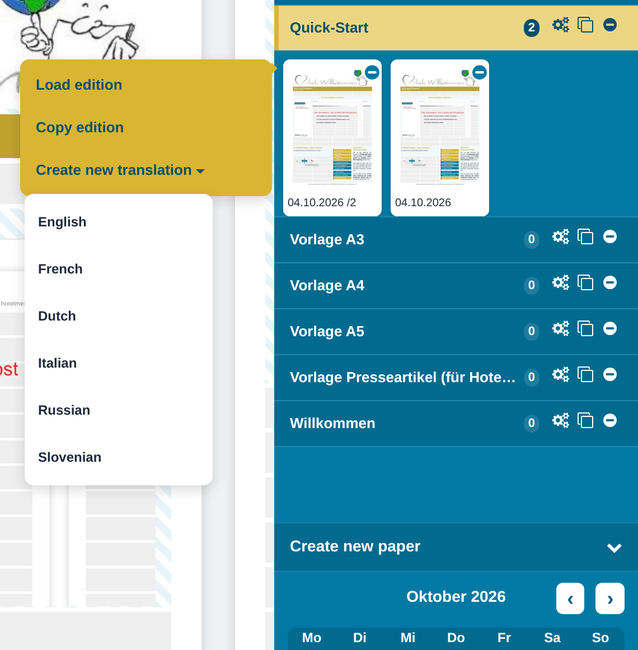
You can see which languages are unlocked for your account in the “Create new translation” menu. We are happy to unlock further languages on request – call us or send us an email at support@hotelmediaservice.com.
Creating a Foreign-Language Edition
In “Saved papers”, click the edition of the day you want to create a translation for.
In the menu, choose “Create new translation” and the language you want.
- Nameplate image – is carried over automatically
- Newspaper title – define it for each language edition: click “Edit” in the nameplate image, overwrite the existing title and save.
- Article fields – fields with a red background still need to be translated
- Images – are shown automatically in the fields to be translated
- Weather and games – are automatically available in the selected language
Translating Your Own Articles
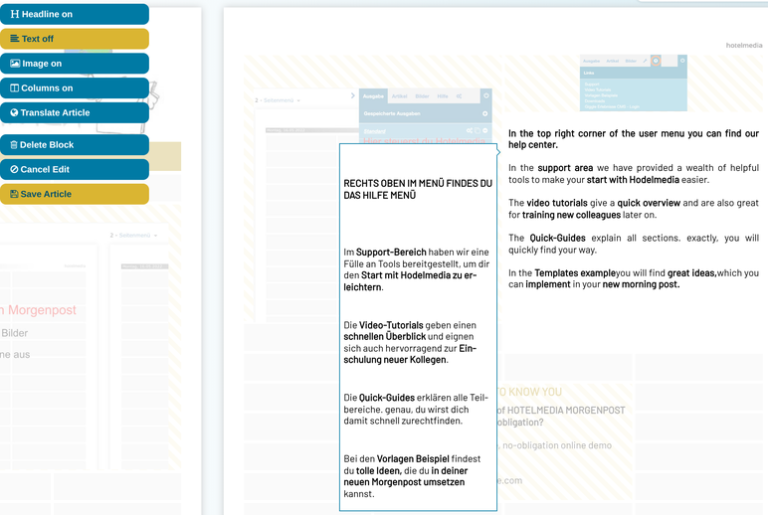
Select an article to translate and click “Edit” – the article is now in editing mode, and a window with the text in the original language appears next to the article.
Now you can easily translate the text yourself, or choose “Translate Article” in the article menu for the automatic translation.
You can then check the article and format it as usual, if necessary.
With “Save Article” in the menu, the translated text of the article is saved together with the original article and is automatically available in future editions. The article’s background, now white, shows that the article has been completed.
Proceed in the same way with all other articles in this edition.
Articles translated once are shown automatically in future versions and do not need to be edited again!
Translating the Whole Edition
At the top left of the toolbar, click the “Translate Paper” button to translate the whole edition. Billing is exact to the character, based on the characters used, including spaces and formatting.
Only articles in the edition that do not have a translation yet are billed and translated.
CAUTION – DeepL delivers translations of excellent quality, but you should still always check that the translation makes sense. No machine in the world is as good as a human!
Articles translated once are shown automatically in future versions and do not need to be edited again!
Buying a Translation Package
In the sidebar on the right, under “Settings” (gears icon) – “Automatic translations”, your remaining characters are shown.
If you do not have enough characters left, you can buy the corresponding number of characters by clicking a package.
The characters are available to you immediately; you will receive an invoice for payment by email.
Changes in the Main Edition – Checking the Translation
If you make changes in the main edition of your newspaper, this is shown in the translated version so that you cannot forget the changes.
Switch to the corresponding language version via “Saved papers”.
Click the icon of the edition and choose “Load edition (language)” in the menu.
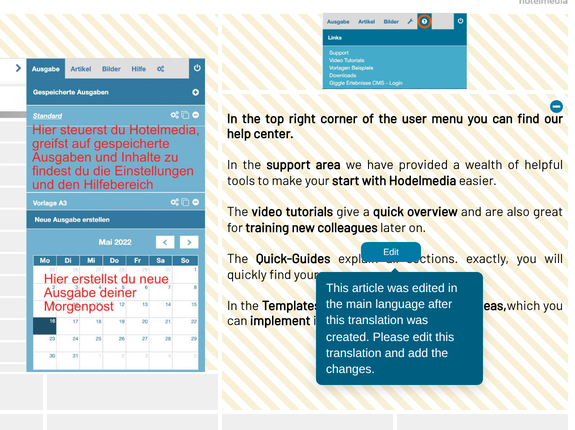
In the foreign-language edition, the article that was changed in the main language is now shown with a red background again.
When you click the article, a help text tells you that the article has been changed and needs to be checked.
Activate the article with “Edit”; the help text shows the changed original text. Check whether the translated article needs to be adjusted, make the changes and save the article again.
The article is now shown with a white background again.