Using Images
Used well, images can add enormous value to your hotel newspaper and present your products perfectly.
As so often, the principle “less is more” applies here too. A few meaningful and emotional images are usually many times more effective than a large number of small images.

Inserting and Editing an Image
Images can either be uploaded directly from your computer into the article field or dragged into the article from the “Own images” library.
Uploading an image
Choose “Image on” in the article menu and click the image icon that now appears at the bottom of the article field. Upload the image you want; it is saved automatically in “Own images – Standard” or in the category you used last.
Tip – to upload images in exactly the dimensions you need, use our image calculation tool in the downloads section.
Inserting an image from “Own images”
Choose the image you want from the “Own images” library and drag it directly into the lower part of the article.
Adjusting the image size
The image is automatically fitted to the space available in the article. If the image appears too small, enlarge the article field.
IMPORTANT: Images are only shown up to their maximum available size. If an image appears too small even though there is enough space in the article, upload a larger version of the image.
TIP: Images are always saved in the image folder that is currently active!
Making an Image Larger or Smaller
Hotelmedia News scales your images automatically based on the space available in the article field. So if you want an image to be larger or smaller, you just need to enlarge or reduce the article field or change the amount of text in the article.

Cropping and Rotating an Image
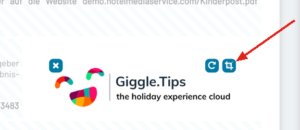
In the article’s editing mode, click the image. Three icons now appear on the image: remove image (×), “Rotate Image” and “Crop Image” (crop icon).
CROP IMAGE
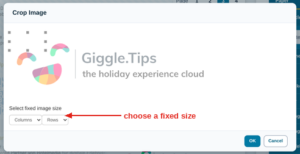
The “Crop Image” window opens. Use the selection frame to choose the section you want and click “OK”. The cropped section is automatically inserted into the article as a new image.
FREE SELECTION
The frame can be chosen freely.
DEFINING AN EXACT IMAGE SIZE
It is usually best to make an exact selection, so that the images in the layout look nice and regular.
Under “Select fixed image size”, choose the column width and number of rows you want; the selection frame then shows the right proportions.
ROTATE IMAGE
In the “Rotate Image” window, rotate the image in 90° steps to the left or right with the two arrow icons and confirm with “OK”.
TIP: Cropped and rotated images are saved as a new image – in the same folder as the original image or in “Own images – Standard”. The original image remains unchanged and is still available.
NOTE: Images belonging to another hotel that are not shared with you cannot be cropped or rotated.
To upload images in exactly the dimensions you need, use our image calculation tool in the downloads section