YOUR DIGITAL HOTEL NEWSPAPER AS AN E-PAPER

Your hotel newspaper as an E-Paper – you can easily activate it yourself
Offering your daily hotel newspaper digitally as well as in print is a great service for your guests. You activate the E-Paper yourself in the settings of your edition category. Hotelmedia News then uploads your edition automatically at the time you choose, and you get links to the PDF and the E-Paper that you can use, for example, on your website, in the digital guest folder or as a QR code at the breakfast buffet.
Activating the E-Paper
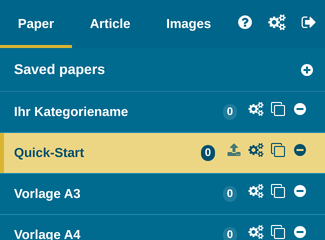
In the “Paper” section, under “Saved papers”, go to the edition category for which the E-Paper should be created and click Settings (gear icon).
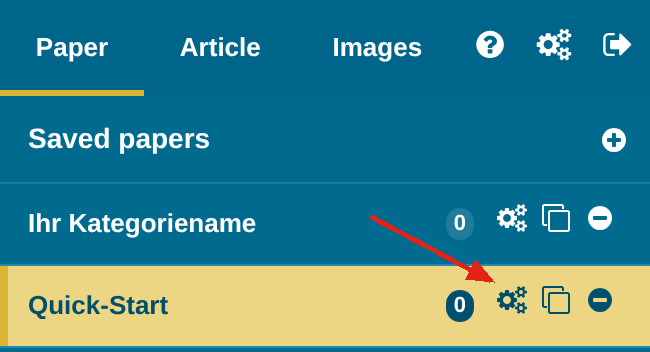
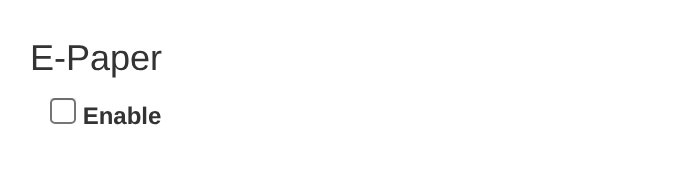
In the settings window that opens, scroll right down to the “E-Paper” section (below “Automatic Cleanup”) and activate the E-Paper by ticking the “Enable” box.
Basic Settings
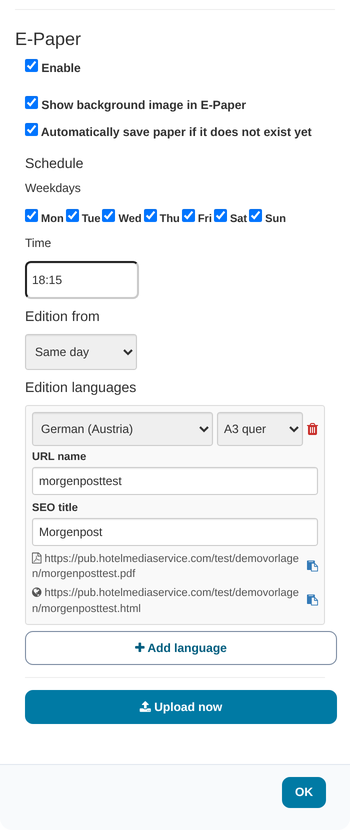
Show background image in E-Paper
If you use background images that should NOT be shown, untick this box.
Automatically save paper if it does not exist yet
Tick this box if you want an E-Paper to be uploaded fully automatically every day, even if there is no saved edition. Hotelmedia News then takes care of that for you.
Schedule
Here you define which E-Papers should be created at what time.
Weekdays
By default, all days are selected, for when a new E-Paper should be created every day (daily hotel newspaper, etc.). For a weekly programme, you can choose here on which day it should be created (simply deselect all other days)
Time
Set the time at which the upload should take place (ideally a time during the night for the daily hotel newspaper, or in the afternoon for an evening edition, etc.).
Edition from
You can choose whether the current day’s edition (“Same day”), the edition for the next day (“Next day”) or the edition for “Next week” should be uploaded.
TIP: If the upload time for the next day’s hotel newspaper is set in the evening BEFORE midnight, choose “Next day”.
If the time is set AFTER midnight, choose “Same day”
Edition Languages – Upload Settings
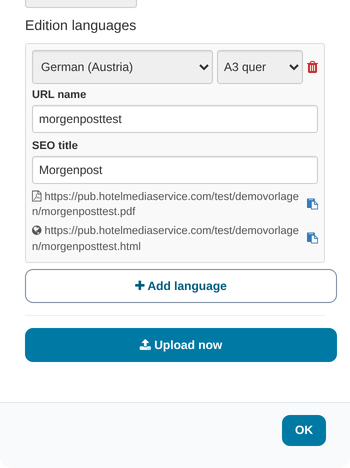
Under “Edition languages”, click the “+ Add language” button to open the settings for each language version.
In the first field, choose the language you want, and to the right of it the format.
FORMAT
For A4 layouts you can choose between A4 (the pages one below the other) or A3 landscape (two pages side by side).
For A5 layouts you can choose between A5 (the pages one below the other) or A4 landscape (two pages side by side).
For A4 long layouts, the DIN long format is available.
URL name
Here you define the ending of the edition URL, e.g. “newspaper”. Lower-case letters (a-z), digits, hyphen, underscore and dot are allowed. Each URL name can only be used once: if it is duplicated or already taken by another category, the language row is marked red and a notice is shown.
The URLs then look like this:
For the PDF: https://…/yourhotelname/newspaper.pdf or
For the E-Paper: https://…/yourhotelname/newspaper.html
With the “Copy to clipboard” icon next to each URL, you copy it with one click.
SEO title
Here you can define how the SEO title should be shown, e.g. “Daily hotel newspaper Hotel XY”.
CREATING FURTHER LANGUAGE VERSIONS
Follow the same steps and choose the languages for which you want to create an E-Paper.
IMPORTANT – an edition must have been created and saved for the language version so that it can be uploaded!
Alternatively, you can activate the option “Automatically save paper if it does not exist yet”; the edition is then created automatically.

DONE – either click “OK” to upload the E-Paper at the defined time, or click “Upload now” to start the upload immediately.
TIP – this function is also very handy if, for example, there are changes to the daily edition and you want to upload the edition again.
As soon as the upload is complete (and a corresponding saved edition exists), you can click the URL in the language you want to check the upload.
If an upload fails
If the edition or a translation for that day is missing when you click “Upload now”, Hotelmedia News shows a notice directly below the button. Create the missing edition or translation and try again.
If a scheduled upload cannot be carried out, you receive an email at the hotel email address that also states the reason. If the edition or a translation was missing, create it and then upload the E-Paper manually with “Upload now” in the category settings. If there is an error in the transfer to the server, please get in touch with us if the problem persists.
Disabling the E-Paper
If you untick “Enable”, the E-Paper for this category is no longer created automatically. All upload settings remain saved and apply again as soon as you re-enable the E-Paper.
What Are My Options Now?
Use the URL to make the E-Paper available to your guests. Here are a few examples.
Creating a QR code
A good option is to make the E-Paper accessible via a QR code on the printed hotel newspaper or elsewhere. We recommend, for example, this QR code generator
Embedding it on your homepage
Many of our customers make the daily hotel newspaper available to their guests on the hotel website. A nice service to show regular guests at home or potential new guests what you offer every day.
Embedding it in the digital guest app
The E-Paper can be shown in practically every digital guest app on the market. Ask your provider how a URL can be embedded.
… and anywhere else a URL can be read!
Settings for the Change of Season
In Hotelmedia News it is possible to direct different edition categories to the same URL. This is important if, for example, you have embedded a fixed URL in the guest app, hotel newspaper, QR code etc.
To do this, use the same URL name for each edition category (e.g. “newspaper”).
IMPORTANT: However, the E-Paper may only be active in one edition category.
So if, for example, you switch from “Spring” to “Summer”, first disable the E-Paper in “Spring” and then enable the E-Paper in “Summer”. Always use the same URL name!
TIP: If you created the new season category by copying, the E-Paper is initially switched off in the copy. Enable it there after you have disabled it in the old category.