Integration with Giggle
All articles from Hotelmedia News can be integrated into Giggle seamlessly and automatically. Whether it’s the daily menu or other relevant information – everything happens automatically and up to date with our Digital Widget.
Would you like to use your Giggle experiences in your hotel newspaper the other way round? This is explained in the quick guide “Giggle Express Content in Hotelmedia”.
General
Besides being publishing software, Hotelmedia News is also a database of your guest information.
Without daily maintenance effort, you can show important information on your website or in external apps such as a digital guest folder.
Your articles can be shown up to date according to the selected article recurrence:
- articles that recur daily – are shown in real time with the current content
- articles that recur weekly or every few weeks – are shown on the right day according to the date.
- articles without a recurrence setting are shown for as long as the link to the article exists
The individual articles can be adapted in size and appearance (text colour, font and font size, alignment, article size) to match your website.
Creating a Digital Widget
Step 1 – Creating the widget
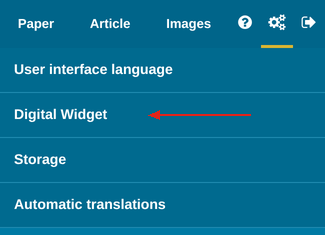
In the sidebar, go to Settings (gears icon) – Digital Widget and create a “New Digital Widget”. The “Digital Widget” item appears when the website integration is activated for your account – if you don’t see it, please get in touch with us.
Give your new Digital Widget a meaningful name so that you can identify it later.
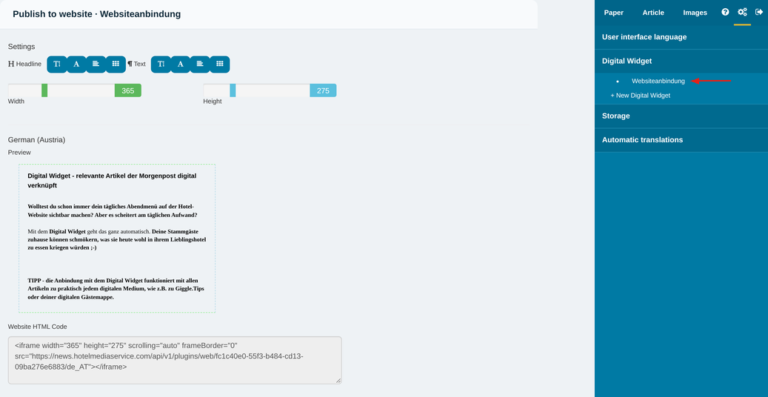
Click your new Digital Widget. The “Publish to website” window opens.
Step 2 – Assigning the widget to an article
Select the article in the layout that you want to assign the Digital Widget to, and click “Edit”.
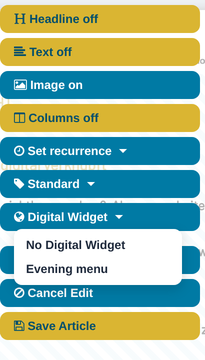
In the article menu, choose the widget in the “Digital Widget” folder.
Assigning an article recurrence
Hotelmedia News updates the embedded article according to your article’s recurrence settings.
Articles that recur daily
This article is shown on the digital device until you remove the assignment in the article or delete the article from the database. Changes to the article’s content are shown immediately (page reload required)
Well suited, for example, to articles such as current appointments, free spa appointments, etc.
Articles that recur weekly or every few weeks
Assign the same Digital Widget to the corresponding article in every weekday edition.
If all seven articles of a weekly article are assigned to the same link, the right article for each weekday is always shown on the device (with the date change at midnight).
The article is now shown on the digital device on the right weekday.
Well suited, for example, to the menu, daily activities etc.
Articles WITHOUT recurrence settings are shown until the link is deleted or the same link is assigned to another article (a warning message appears).
Step 3 – Digital Widget – adjusting the display
In the “Publish to website” window you now see a preview of your article and various options for adapting the article for display. (Provided the Digital Widget has already been assigned to an article – otherwise you see a standard text.)
Settings
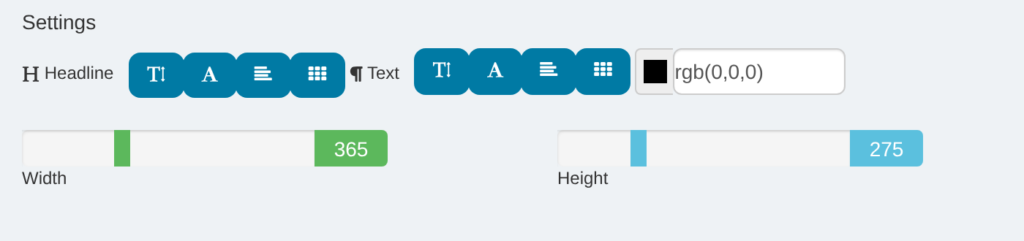
Here you can individually adjust the font size, font family, alignment and font colour for the article’s headline and text.
The width and height of the article (in pixels), as it should appear on the device, are also set here.
TIP: Always assign an article first (step 2) so that you can adjust it precisely.
Website HTML Code
This is created automatically based on your settings and later integrated in the appropriate place on your digital device.
Settings for Giggle
The following images show the individual settings: font size, font family, alignment, font colour as well as width and height.




Digital Widget Link for an External Provider’s App
This tool makes it possible to connect to many external providers’ apps – for example Giggle: your articles from Hotelmedia News, such as the daily menu, then appear automatically and up to date in Giggle. The requirement is that the app can read a website (HTML page). Ask your provider about this.
How to proceed
1 – create the link as described in steps 1 to 3
2 – there is no need to set the width and height, because an app does not read or transfer these iframe attributes
3 – in the admin area of your app, create a link to a website (for more information, contact the app provider!)
4 – copy the Website HTML Code from Hotelmedia News into the app and delete the iframe attributes as described below
Example:
Website HTML Code from Hotelmedia News
<iframe width=”365″ height=”275″ scrolling=”auto” frameBorder=”0″ src=”https://news.hotelmediaservice.com/api/v1/plugins/web/<your-widget-ID>/de_AT“>
Delete the code before https://… and after …/de_AT (or the corresponding endings for your language version DE, GB, FR, IT, etc.).
The finished code for the app must look like this:
https://news.hotelmediaservice.com/api/v1/plugins/web/<your-widget-ID>/de_AT
TIP: Make sure the code is written exactly like this, otherwise the link will not work!
To find out how to use your Giggle experiences in Hotelmedia News the other way round, read the quick guide “Giggle Express Content in Hotelmedia”.
Renaming or Deleting a Digital Widget
In the “Publish to website” window, you will find the links for deleting or renaming the Digital Widget below the preview.
Delete Digital Widget
Clicking this option deletes the Digital Widget from Hotelmedia News permanently (you have to confirm a warning message).
To remove a Digital Widget from just one article, choose the option “No Digital Widget” in “article menu – Digital Widget”. In this case the Digital Widget remains and can be assigned to another article.
Rename
Clicking this link opens a field with the name of the Digital Widget, where you can give it a new name. Clicking the link again hides the field.